A Brief Introduction of Google Docs:-
In the field of admin, sales & marketing a lot of information is shuttled to and from multiple points between sometimes the same firm or sometimes between multiple endpoints.
Where a lot of data might be added or removed from the content by a number of users resulting in a zillion copies of similar content moving between various points, thus sometimes ending up creating chaos in order.
Google in October of 2012 came up with a solution for sharing and being able to edit this data among several users without the need of sharing the file with multiple sources.
Google provided a platform where a particular file could be edited, commented upon, or just viewed by a number of people at the same time or as per the convenience of the user at any time of day, month, or year.
This revolutionary feature was called Google Docs and a dedicated platform for Google Docs was made available in the summer of 2014 for the general public.
Google Docs is a complimentary internet-based application in which documents and spreadsheets can be created, edited, and stored on Google drive which is a cloud server featured by Google.
Documents can be imported to any computer with Internet connectivity with a google web browser.
As mentioned above, Google Docs is a part of a comprehensive package of online applications offered by Google.
Google Docs Features
Google Docs gives its users the choice to create, edit, update, and import/export documents and spreadsheets in several different fonts and file formats while combining text with formulas, lists, tables, and images as well.
Google Docs is adaptable with almost all presentation software and word processor applications for effective processing.
Any work which is executed on Google Docs can be published as a web page or as a print-ready manuscript at any given point in time.
Google Docs offers access to those who can view, comment or edit their work.
It has become an ideal choice for publishing within an enterprise, organization maintaining blogs, or composing work that can be viewed or edited by multiple users at one go.
Google Docs works on collaborative projects
Google Docs works perfectly for collaborative projects in which multiple authors work together in real-time from geographically diverse locations and making it easier for them to work on one platform.
Hence, all participants can see who made specific document changes and when those alterations were done.
Is Google Drive Safe for Our Data
Since documents are stored online and can also be stored on users’ drives or computers, therefore, there is no risk of total data loss as a result of a localized disaster.
However, Google Docs which requires Internet access as its base feature has given rise to concerns from some authors about their work being open to the public domain and not being private and secure.
But Google has promised their users of the security protocols in place in order to ensure the safety & security of the data being worked upon by the users of Google Docs.

How Google Docs work ?
What is Cloud Computing?
Cloud computing is a networked computer system that uses the resources of several servers to complete tasks and store data which is shaping up to be the next big trend in the computing industry where the entire enterprise relies on data and is driven by the same.
Traditionally, with the commencement of the data revolution in the 21st century there were only a few people who could access the processing power of a supercomputer.
With the new era of cloud computing, practically anyone or any organization could tap into the cloud server to gain access to that sort of computing power.
Where I can save my personal Data On the Computer
Since the launch and use of the personal computer, users have been storing information either on an external storage device like a compact disc or on a computer’s hard drive, or on the system’s hard drive.
We as users have been programmed in a way so as to purchase new pieces of equipment or upgrade old ones whenever applications require more processing power than our current systems can provide.
the cloud service provider is responsible for securing?
Thus, cloud computing has taken over the responsibility of storage and processing power which falls back to the network and not the individual computer owner. Thus, providing additional storage space and opportunities for future enhancements.
Although if we compare internet computing then it’s a relatively young industry, still there are many companies that offer cloud computing services. One of the major companies is Google.
This Internet giant offers a G-suite of Web-based productivity applications under the name Google Docs, it will allow the users to utilize applications to the best of their potential.
is Google Docs Easy To Use
The advantage is to make the procedures easier and simpler.
Google has also made sure that applications or tools aren’t as complex or comprehensive as the leading desktop counterparts, they have other advantages over traditional software.
The features of these advantages would be that the applications aren’t tied to a specific computer.
Therefore, Google doesn’t want users to download and install the software on a particular machine to access the software or the file.
This goes to prove that any operating system or computer connected to the Internet can access Google Docs.
Since each of the users saves information to the cloud system, then he or she can access the same file from anywhere.
Users don’t have to look and opt for a specific version of a document that is the most current — it will always be saved in the Google cloud as it is.
new Google Docs features to try in 2023
Another advantage of Google Docs would be live access to multiple users. The function will enable users to make edits, comment, or just view the same files all at the same time.
This feature is known as online collaboration, and it helps streamline teamwork over the internet.
Since Google Docs preserve earlier versions of the documents being worked on, users would not have any reasons to worry about any data being irrevocably changed in a file.
Collaborating on files might change the way we think about document management. But it also means that the project managers can save time and effort.
Here are a few of the many tools that will help you get more out of Google’s free data processing app:-
Google Docs is packed with powerful tools are Below:
1. Voice recognition rather than typing

For times when the user wishes to utilize the voice input feature rather than type in the entire content. Google Docs’ voice typing tool is a must try.
To access the feature from the toolbar go to an open document, go to Tools > Voice typing.
A small window with a large microphone image will pop up along the right edge of the page that the user can click to toggle between switching voice typing on and off.
Voice typing is available only in Google docs. It’s an acquired taste, but the client can also use voice typing to edit and format text in Google Docs.
2. Clear formatting

When the user pastes a slab of content in Google Docs, the font and font size are most likely to vary from the rest of the text. To make it match the rest of the content, highlight the text and perform one of these three actions:
- Right-click the selected text and click Clear formatting
- Go to Format > Clear formatting
- Choose Normal text from the pull-down menu below the Format menu options.
3. Additional fonts
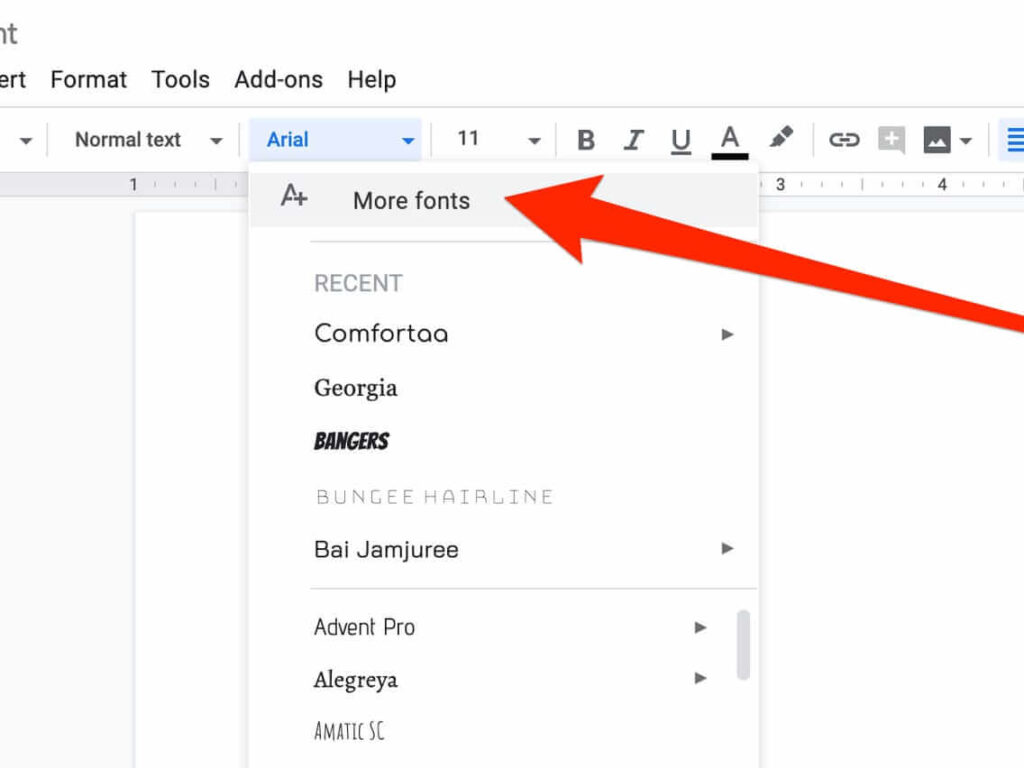
From the drop down menu of the toolbar of the document, choose More fonts to add new fonts to this menu.
There are a number of fonts that are available which the user can choose from.
To get a better idea of how different fonts might look, check out Google Fonts where users can view sample liners of each font.
The user may click into each sample sentence and change it according to their own needs.
When the user finds the font they prefer, the user just needs to search for its name from the fonts pull-down menu in Google Docs and it is automatically added to your list.
4. Suggestion mode

When a user is working on a shared document, then he/she can change the edit mode so that Google Docs tracks changes unlike Microsoft Word.
Google doc can also help the users to perform editing whilst allowing their collaborators to accept or reject them.
Click on the drop down arrow next to the pencil icon in the upper-right corner of the document and choose the Suggesting option.
Now, as the user edits the document, changes will show as color-coded suggestions with a comment next to each to show who made the changes, which helps in transparency and avoids confusion with the click of a button.
5. Tag someone in a comment

If any of the users wishes to draw someone’s attention with a comment, he/she may tag collaborators by either entering the @ or + sign and choose the person who they want to tag.
He or she will then get a notification or an email if the person tagged is not online to alert them about the comment or question.
6. Bookmark more, scroll less

For long documents, adding bookmarks means less scrolling. In Google Docs Go to Insert > Bookmark to add a bookmarking to the document.
A minute, blue bookmark icon will be added to the left edge of the document and It will show that the page/document has been bookmarked.
7. Offline mode

The user doesn’t necessarily need an Internet connection to use Google Docs, though it is required to be connected when setting up offline use (along with Chrome).
From the main screen of Google Drive:
Select the gear image in the upper-right corner and choose Settings.
Throw the switch to the right in the Offline section for “Create, open and edit your recent Google Doc files on this device while offline.”
With the offline mode turned on, you will be able to view and edit the Docs, Sheets, Slides and Drawings till the next time users connect to the Internet.
Any changes made in the offline mode will be automatically saved until the internet connectivity resumes.
8. Rolling down own substitutions

Go to Tools > Preferences and they will see a list of automatic substitutions that Google Docs makes.
Most involve the style in which fractions are displayed along with a few symbols and arrow styles.
Users can add their own, but substitutions based on the capitalization of a word does not work.
9. Right-click for research

To swiftly look up the definition of a word, right-click on the word and choose Define.
A small panel appears to the right of the document with the definition of the word, along with synonyms, letting the user obtain information without leaving Google Docs.
Similar to that function, right-click on a word and choose Research to perform a quick Google search in the right-panel.
Any links click will open in a new tab, although the user can drag images from the search results from the right panel directly into his/her document.
10. Revision history

How To return to an earlier version of Google
If the client/user would like to return to an earlier version of Google Doc, they can do so by going to File > See revision history.
From the drop-down File panel, they would be able to see a chronological list of time-stamped versions of the document.
Choose any one and select it to restore that version of the revision to open it.
One can always go back to revision history and choose a previous version to be able to return to the latest edits with the previously copied data.
There is no way to lose changes using revision history; choosing an earlier version just moves it to the top of their revision history list.
Conclusion
With these many features, the user has the opportunity to explore the freedom and capacity to perform multiple collaborative tasks without the loss of any data.
Google Docs comes loaded with many features, the motive of it is to make collaborative editing of data a worry of the past and help its users to attempt and plan the major implementation of this segment in their day-to-day personal and professional lives.
Some useful links are Below:
To know more about Most Demanded Technical Certification Course
Must visit our Official youtube channel - Youtube
Connect with us - on Facebook
Connect with us - on Instagram
- Get link
- X
- Other Apps
- Get link
- X
- Other Apps
Comments
Post a Comment